
How to Install & Activate Microsoft Office on Windows
If you purchased a Microsoft Office license from Zurbit, follow the steps below to install and activate Office on Windows. The exact activation method can vary by product and license type, so always follow the instructions included with your order.
Before you begin
- Confirm the Office edition you purchased.
- Confirm that the license is for Windows.
- Have your product key and Zurbit order email available.
- Make sure Windows is sufficiently up to date to install the product.
- Save your work before changing an existing Office installation.
If another version of Office is already installed, it may be able to coexist with the new installation. Compatibility depends on the versions, 32-bit or 64-bit architecture, and installation technology. If setup or activation reports a conflict, uninstall the conflicting Office installation first using Windows Settings or Microsoft's official Office uninstall guidance.
You do not normally need to uninstall OneDrive to install Microsoft Office.
If you are installing Project or Visio alongside Microsoft Office, compatibility depends on the Office version, architecture, and installation technology. Review Microsoft's guidance for multiple Office versions and standalone applications. If setup reports a compatibility conflict, contact support before removing existing applications.
Install Microsoft Office
Download the installer supplied with your order
Use the download link provided in your Zurbit order email or the appropriate official Microsoft source. Make sure the download matches the Office edition and Windows license you purchased.
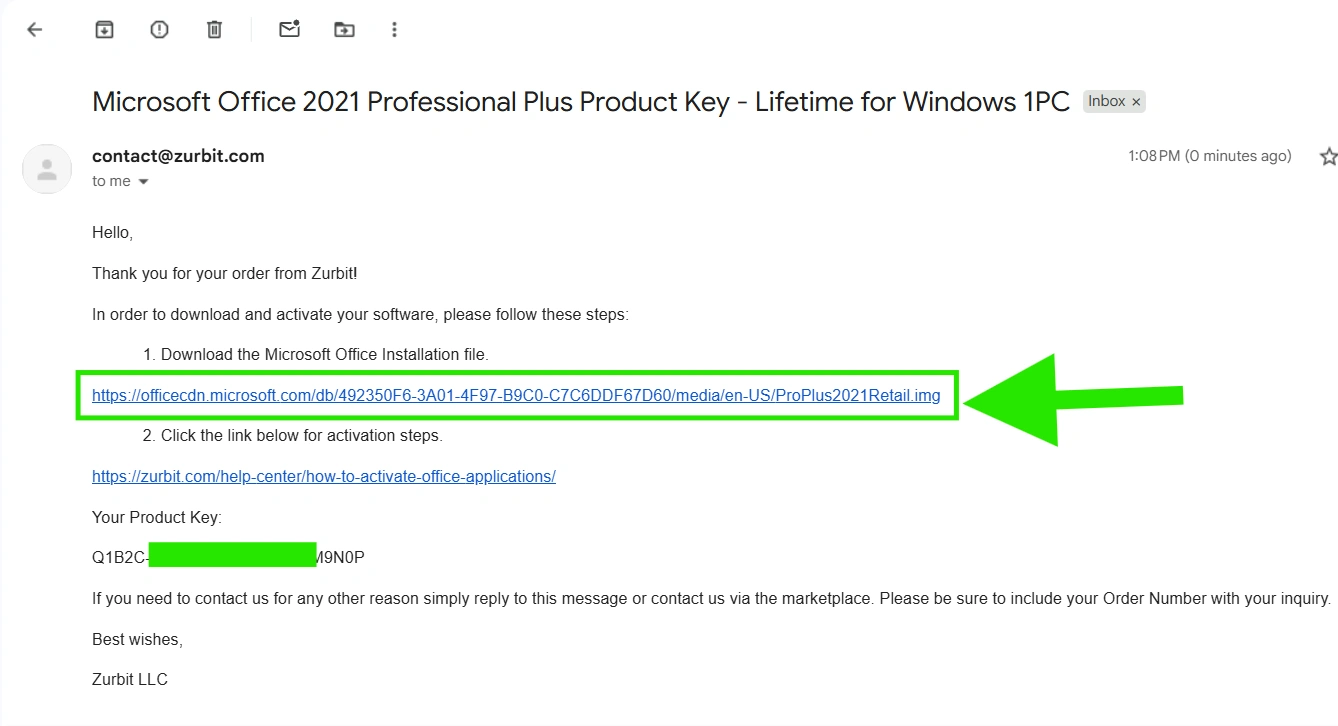
Locate the downloaded installation file
Open File Explorer and locate the downloaded file, usually in the Downloads folder.
If your order provides an OfficeSetup.exe or similar setup application, open it and follow the prompts. If your order provides an IMG file, continue to the next step.
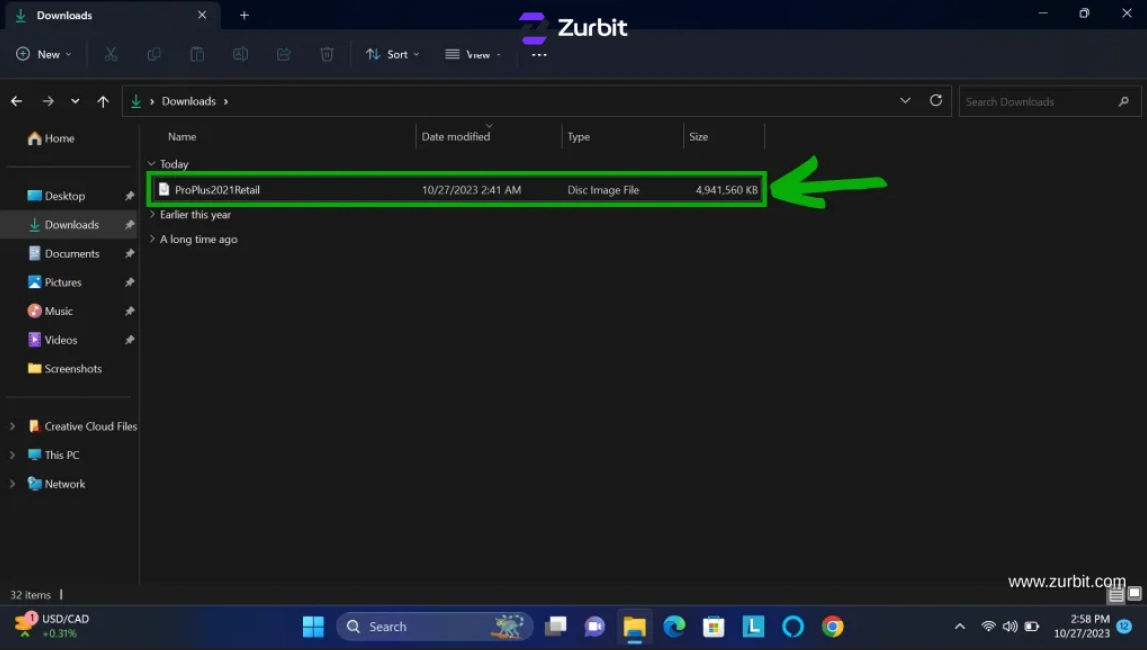
Mount the IMG file with Windows
Right-click the downloaded IMG file and select Mount. Windows will open it as a virtual drive.
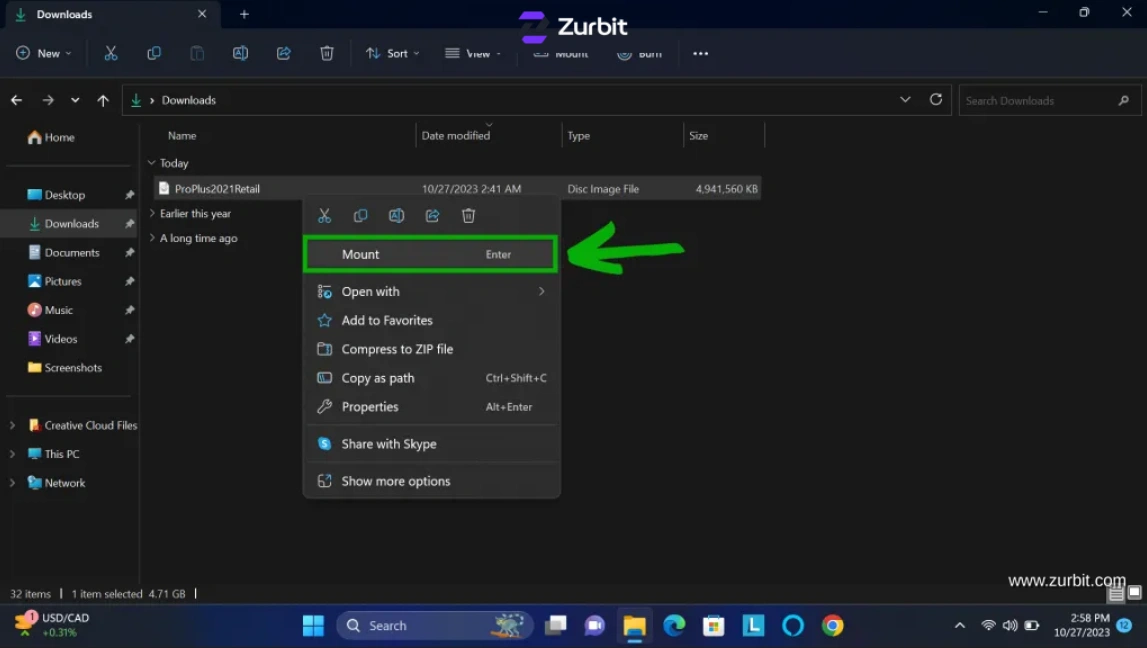
If Mount is not available: Confirm that the download completed correctly, try opening the IMG file with File Explorer, and check that IMG files are associated with File Explorer. If Windows still cannot mount it, a reputable third-party virtual-drive utility may be used as an optional fallback.
Run setup and finish installation
Open the mounted drive, find the Office setup application, and double-click it to begin installation.
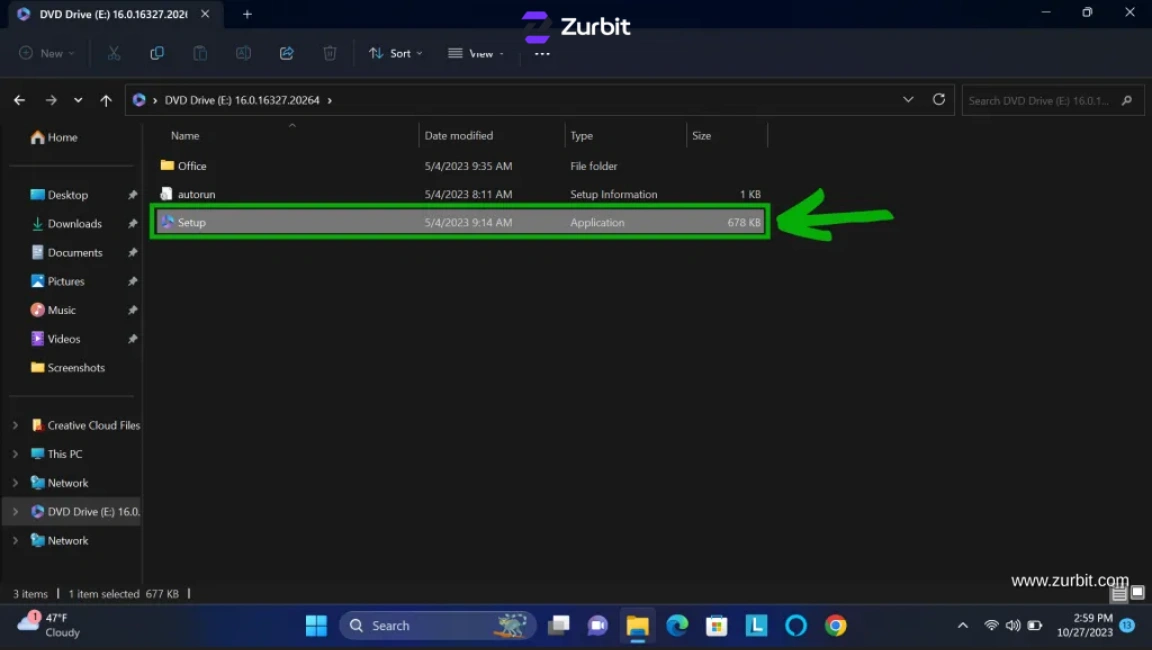
Follow the on-screen prompts and wait while Office installs. Keep the device connected to the internet if the installer requests it.
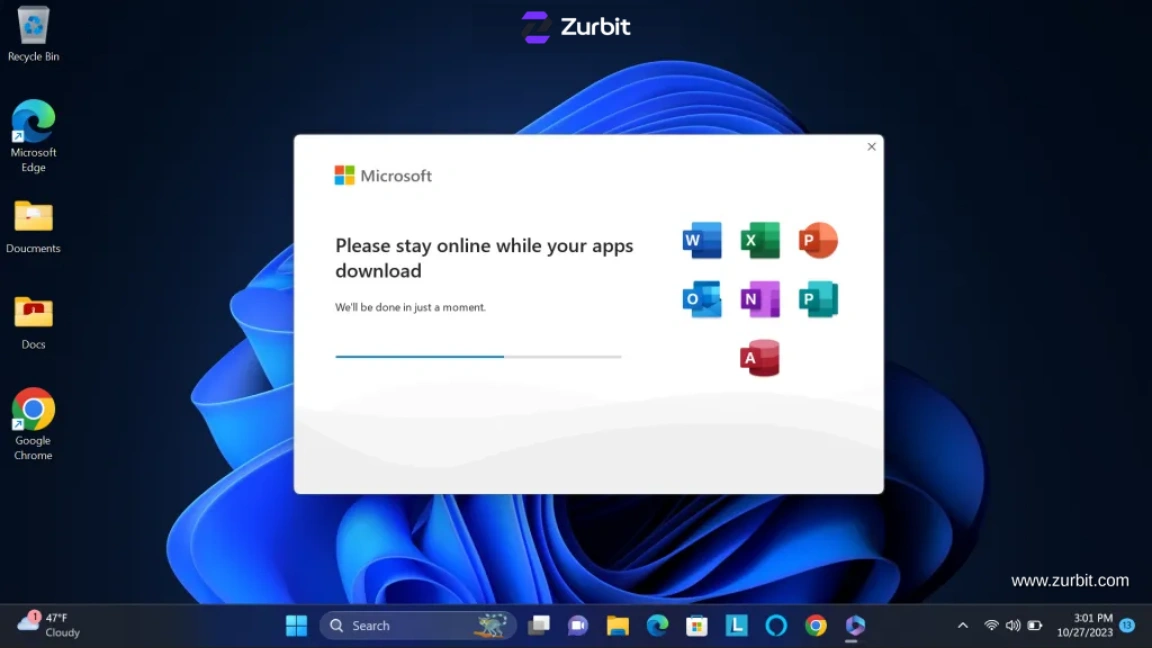
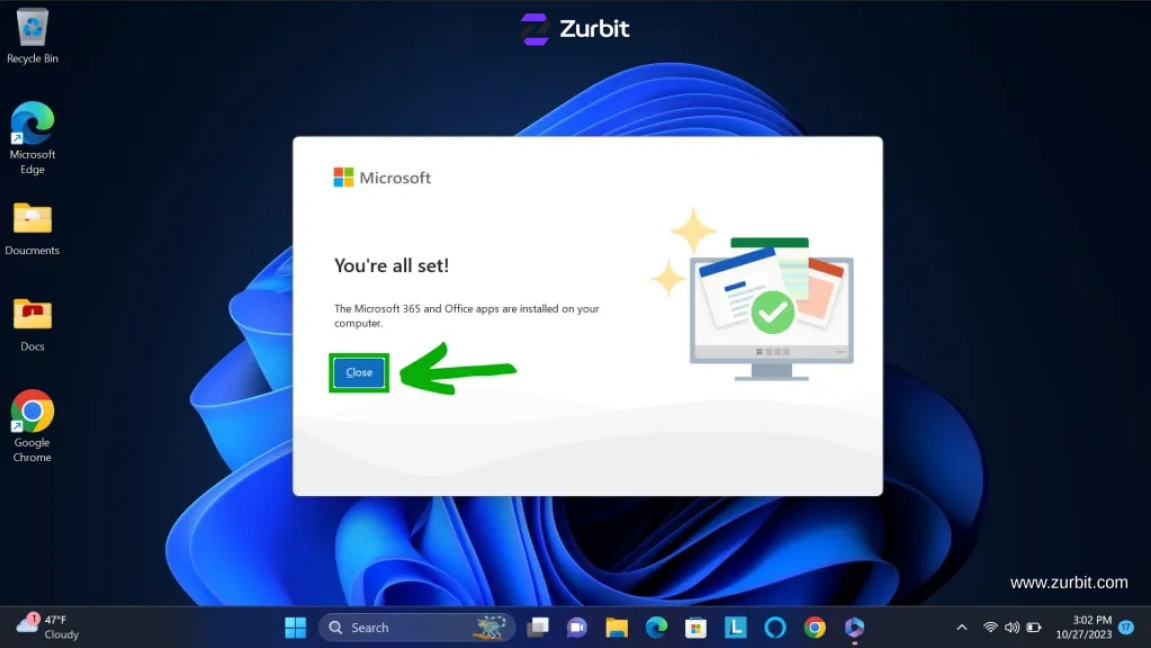
When setup reports that Office is installed, select Close.
Activate Microsoft Office
The activation method depends on the Office license you purchased. Follow the activation instructions included with your Zurbit order.
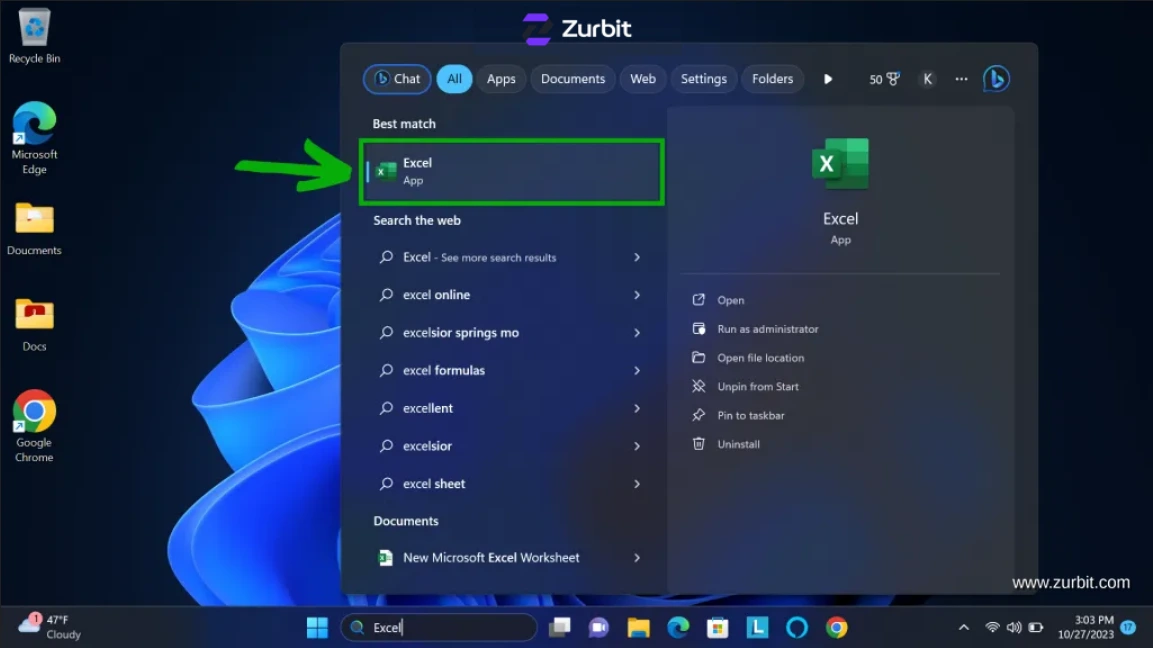
Open an Office application
Open an Office application such as Word or Excel. The screens you see may vary depending on your Office version and license type.
Method A: Redeem the key and sign in
If your product key must first be redeemed to a Microsoft account, use the Microsoft redemption or setup page specified in your order instructions. After redemption, open Office and sign in with the same Microsoft account.
Method B: Enter the product key in Office
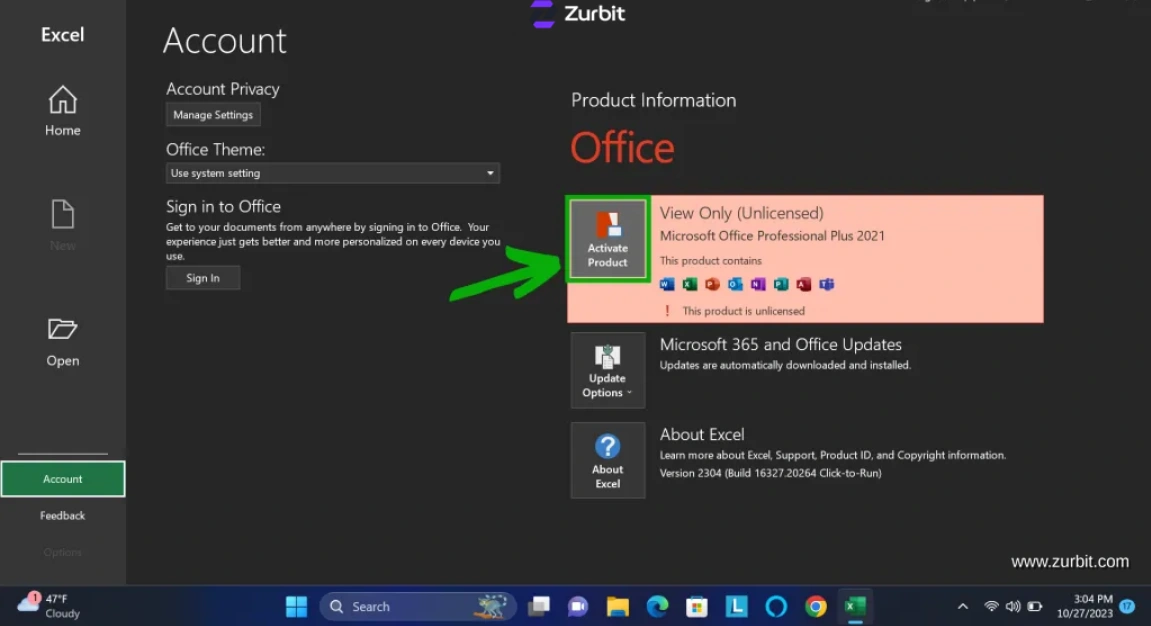
If your Office edition supports direct product-key activation, open the Office Account page and select Activate Product.
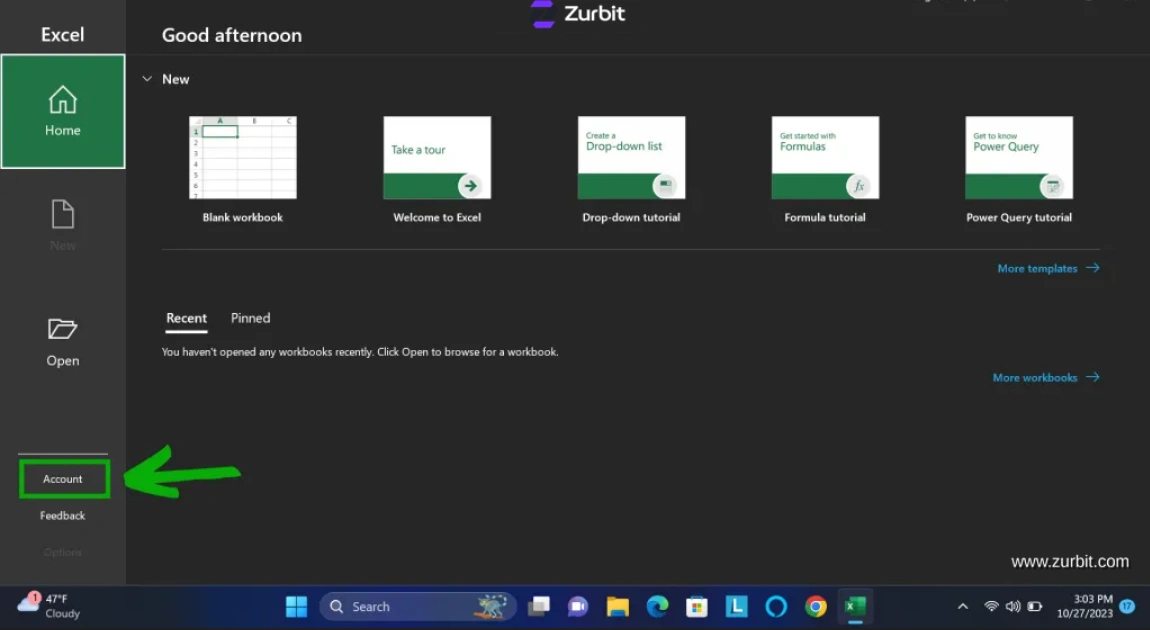
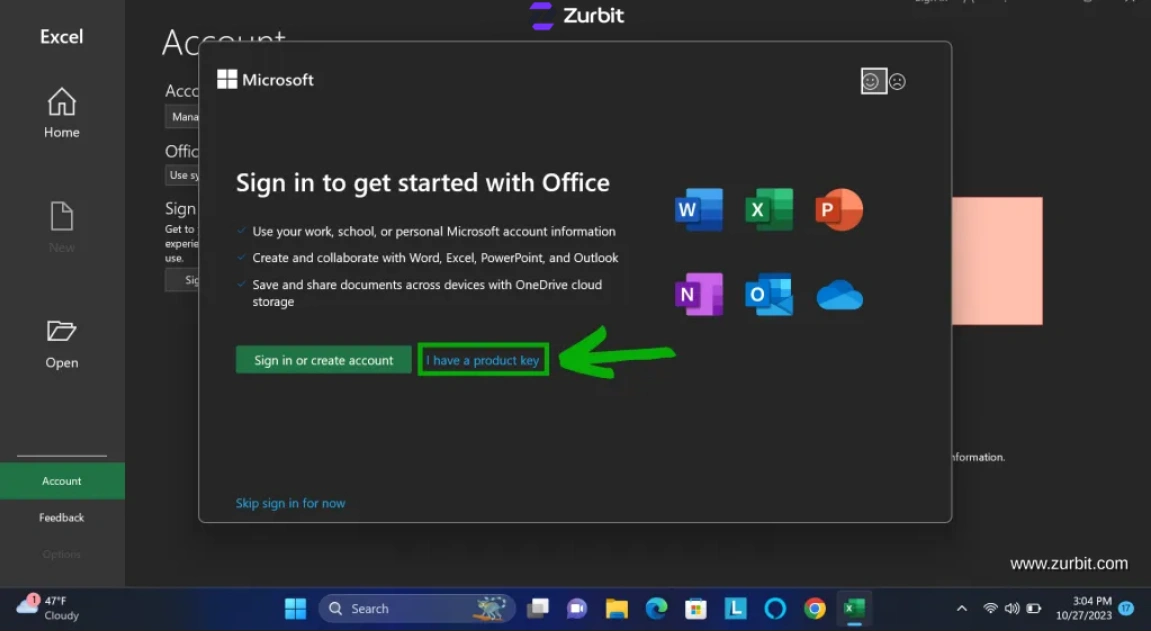
If shown, select I have a product key.
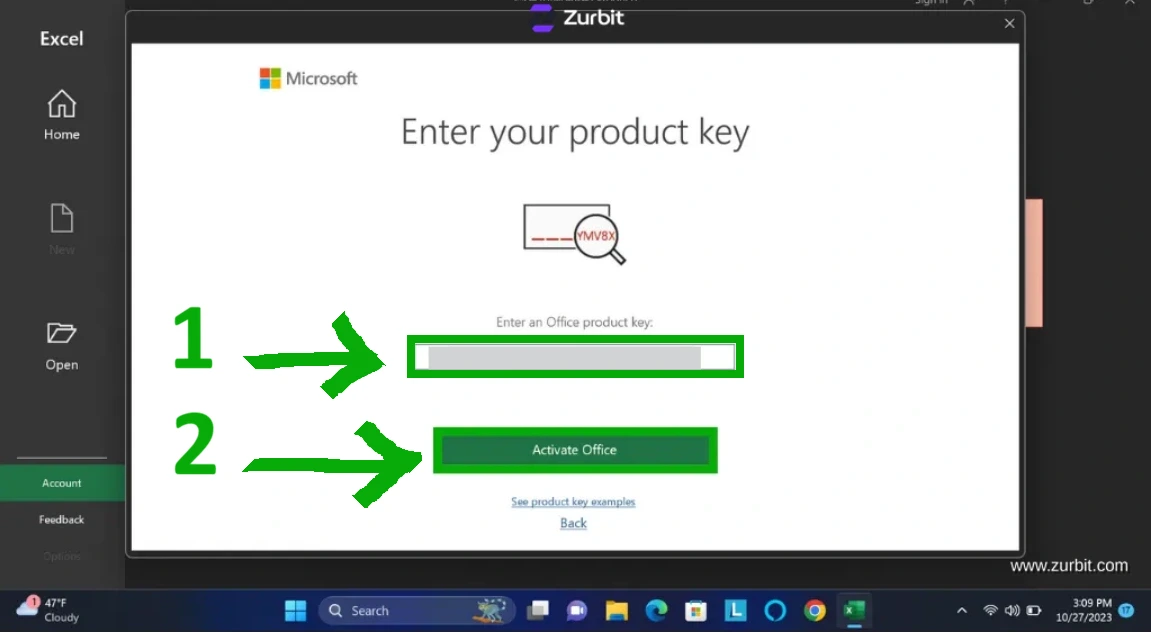
Enter the 25-character Office product key exactly as supplied, then select Activate Office and follow the on-screen prompts.
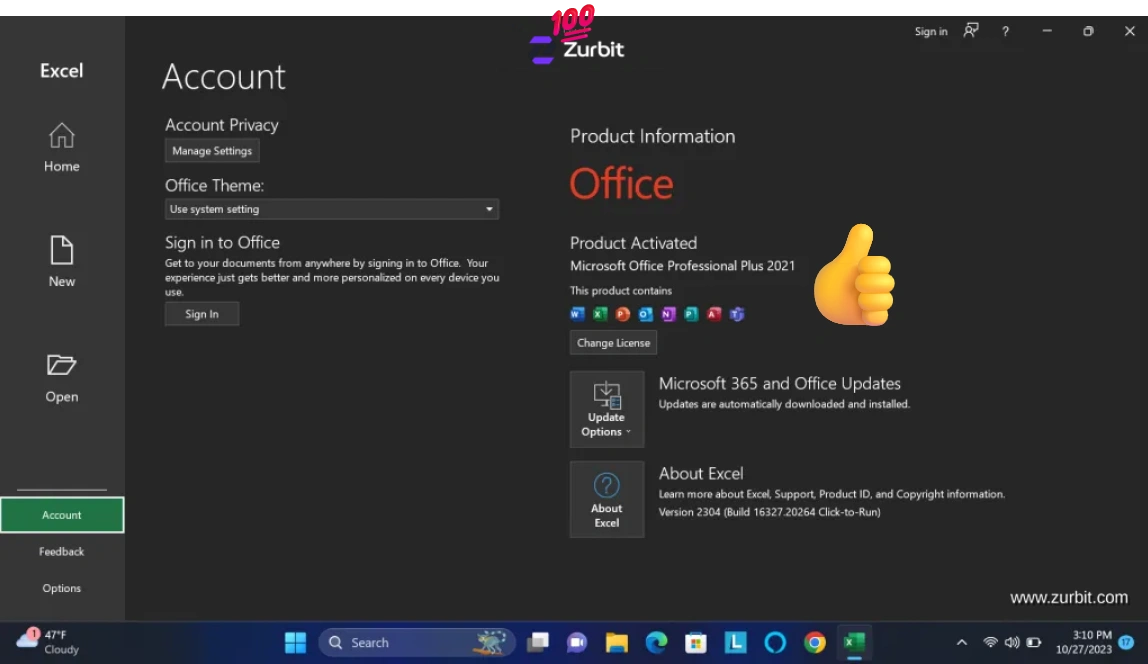
Return to the Account page and confirm that Office shows Product Activated.
If Office activation fails
First check that:
- The installed Office edition matches the purchased license.
- The product and license are for Windows.
- The product key was entered correctly.
- The device has internet access.
- Office and Windows have been restarted.
- Another Office version is not causing an installation or activation conflict.
If activation still fails, contact Zurbit support with your order number, the exact error message, and a screenshot of the activation screen.
If we cannot resolve an eligible license issue, your order may qualify for a replacement or refund in accordance with our Refund & Returns Policy.
Frequently Asked Questions
Do I always need to uninstall an existing Office installation?
No. Whether two installations can coexist depends on their versions, architecture, and installation technology. Uninstall the conflicting installation only if setup or activation reports a compatibility problem.
Do I need to uninstall OneDrive before installing Office?
No. You do not normally need to uninstall OneDrive to install Microsoft Office.
Can Project or Visio be installed alongside Microsoft Office?
Compatibility depends on the Office version, 32-bit or 64-bit architecture, and installation technology. If setup reports a conflict, contact support before removing existing applications.
Should I redeem my key online or enter it inside Office?
Use the activation method included with your Zurbit order. Some licenses must be redeemed to a Microsoft account and then activated by signing in. Other Office editions support direct product-key entry inside an Office application.
Office says the product key has reached its activation limit. What should I do?
Do not repeatedly reinstall Office or re-enter the key. Follow the activation method supplied with your order or contact Zurbit support with the exact message and your order number. Phone activation is only an alternate method when it applies to the specific product and license.
Still need help? Contact Zurbit support with your order number, the exact error message, and a screenshot of the activation screen.
contact@zurbit.com +1 (617) 214-4700