
How to Activate Windows
If you purchased a Windows product key from Zurbit, follow the steps below to activate Windows 11 or Windows 10 using Microsoft’s built-in Activation settings.
How to activate Windows with a product key
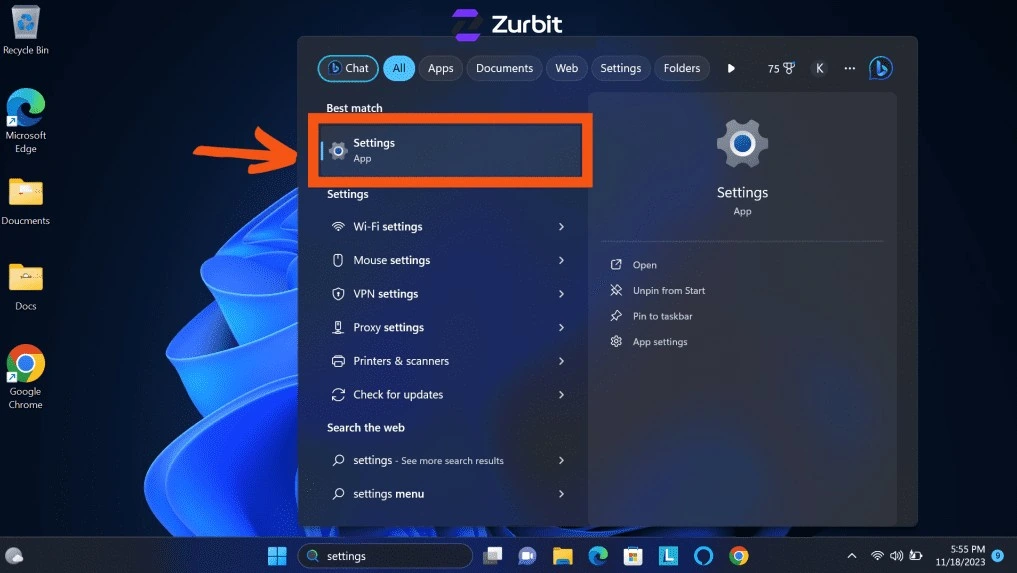
Open Windows Settings
Select the Start button on the taskbar, or press the Windows key, then open Settings.
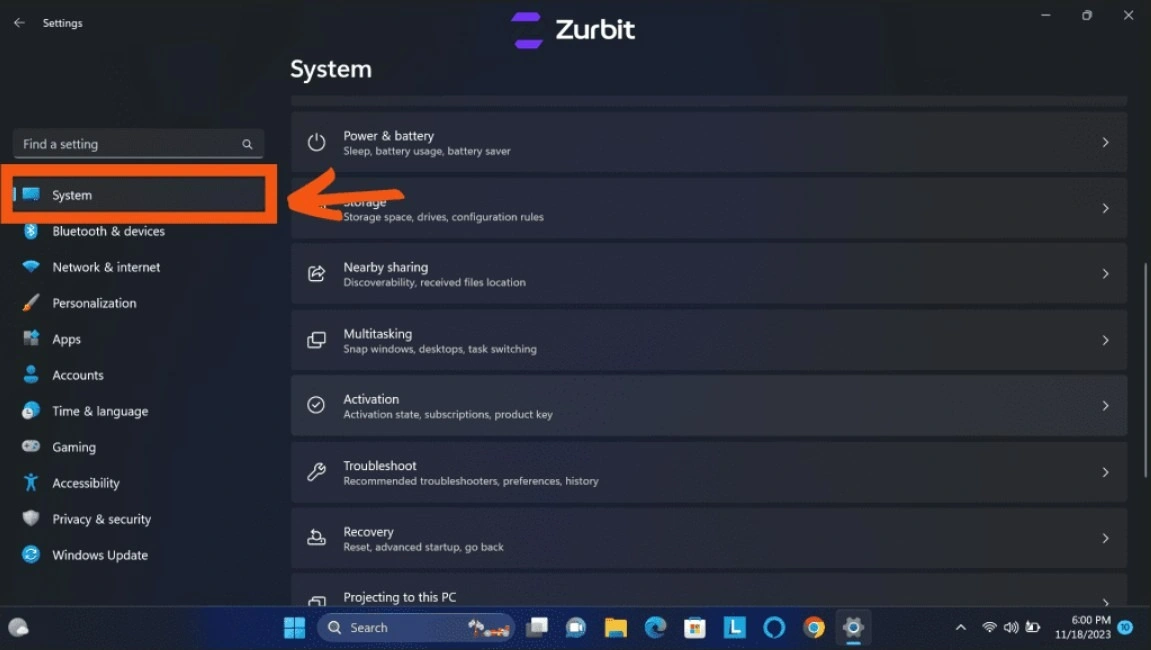
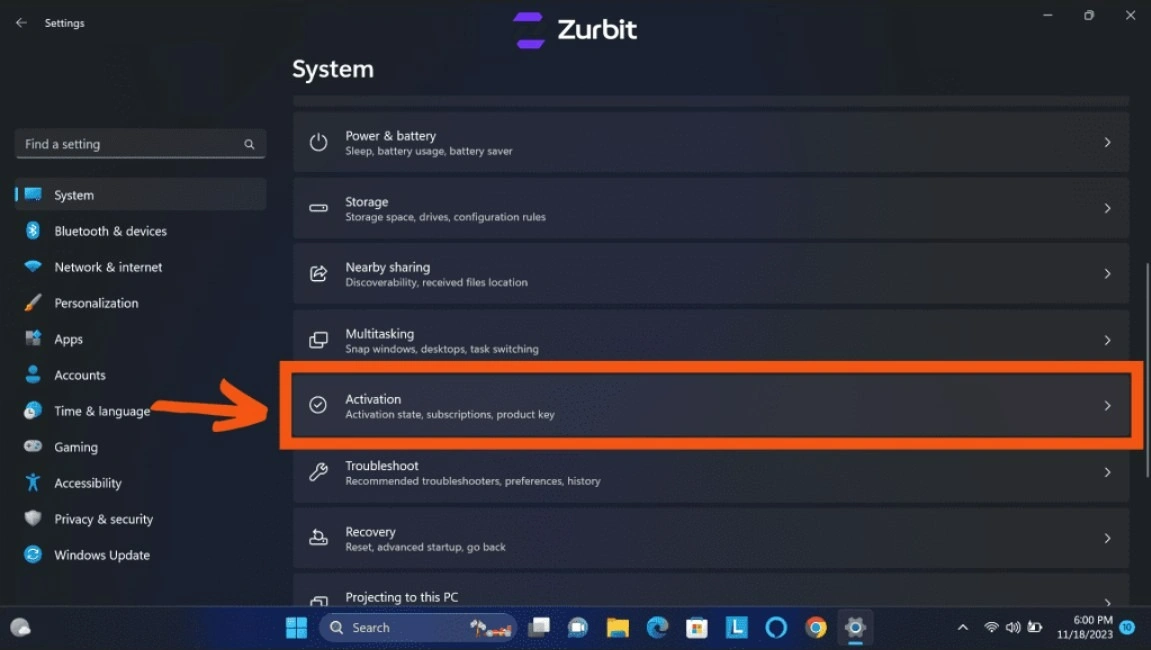
Open Activation settings
Windows 11: Go to Settings > System > Activation.
Windows 10: Go to Settings > Update & Security > Activation.
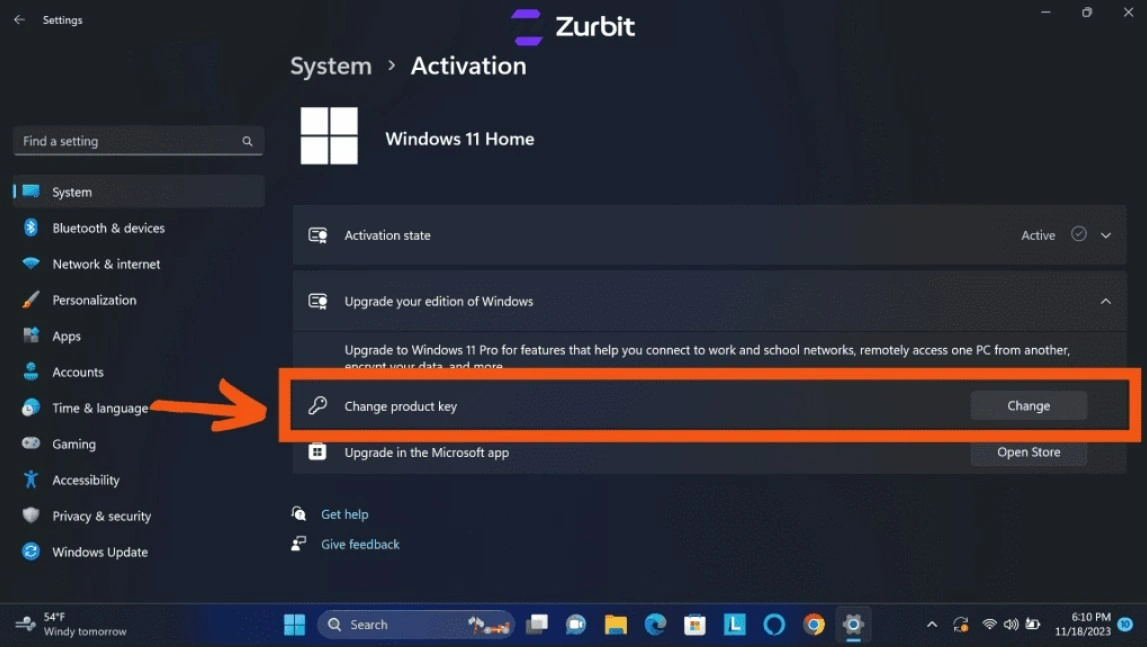
Select Change product key
Under Activation, select Change product key to open the product-key entry screen.
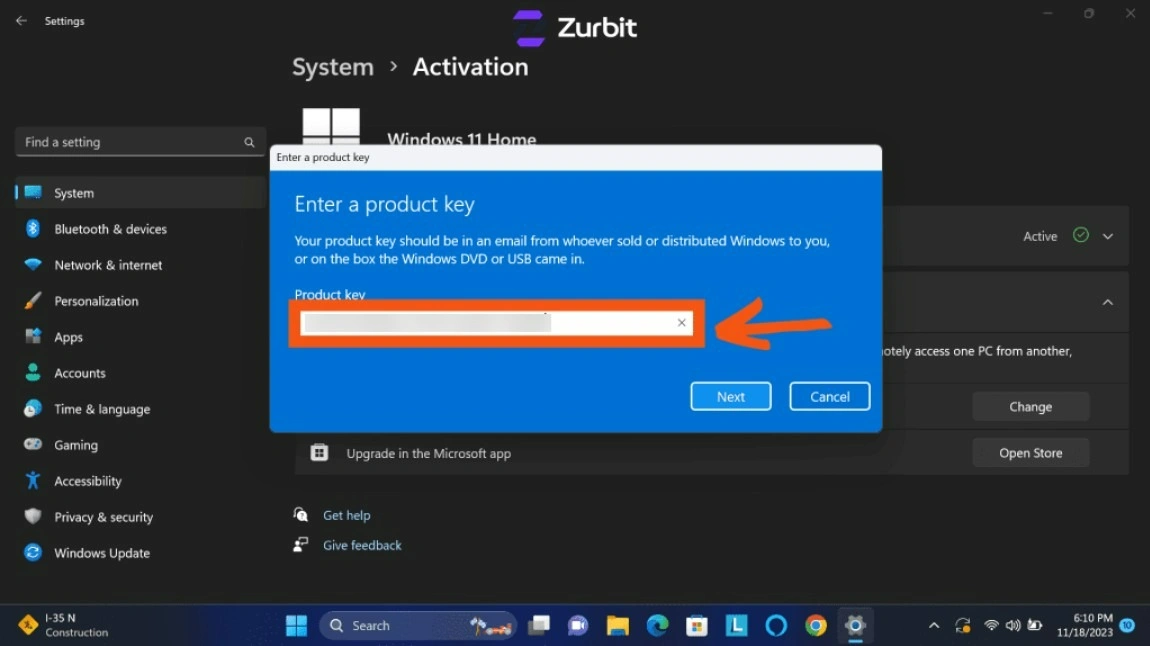
Enter your 25-character product key
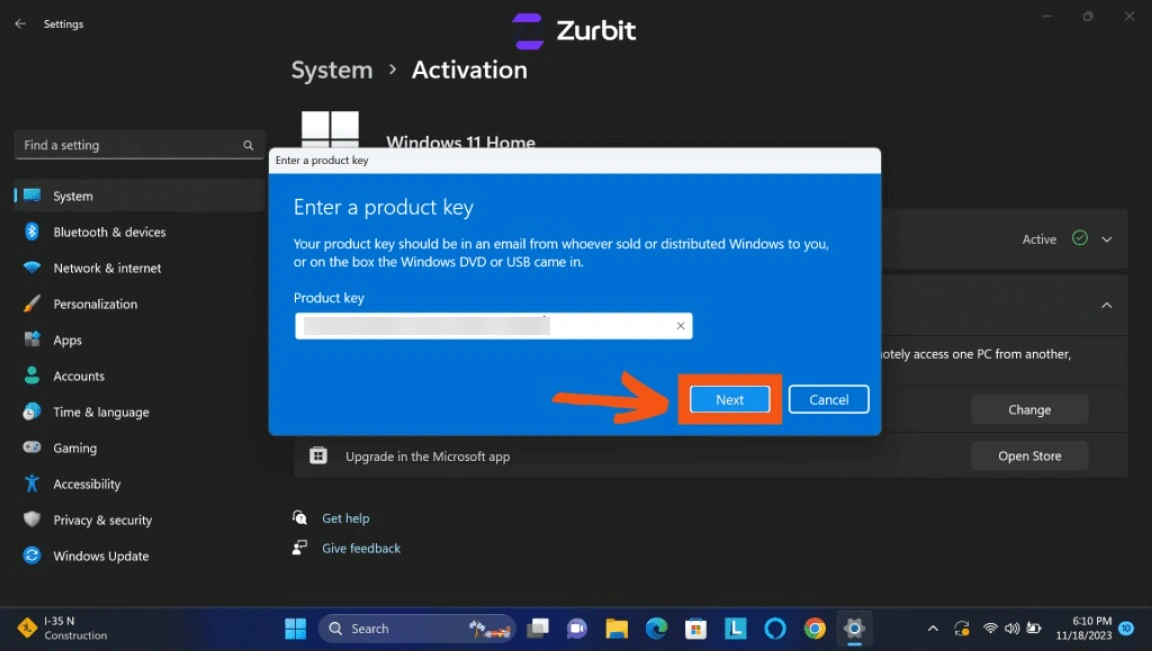
Enter the 25-character product key exactly as it appears in your Zurbit order email, then select Next.
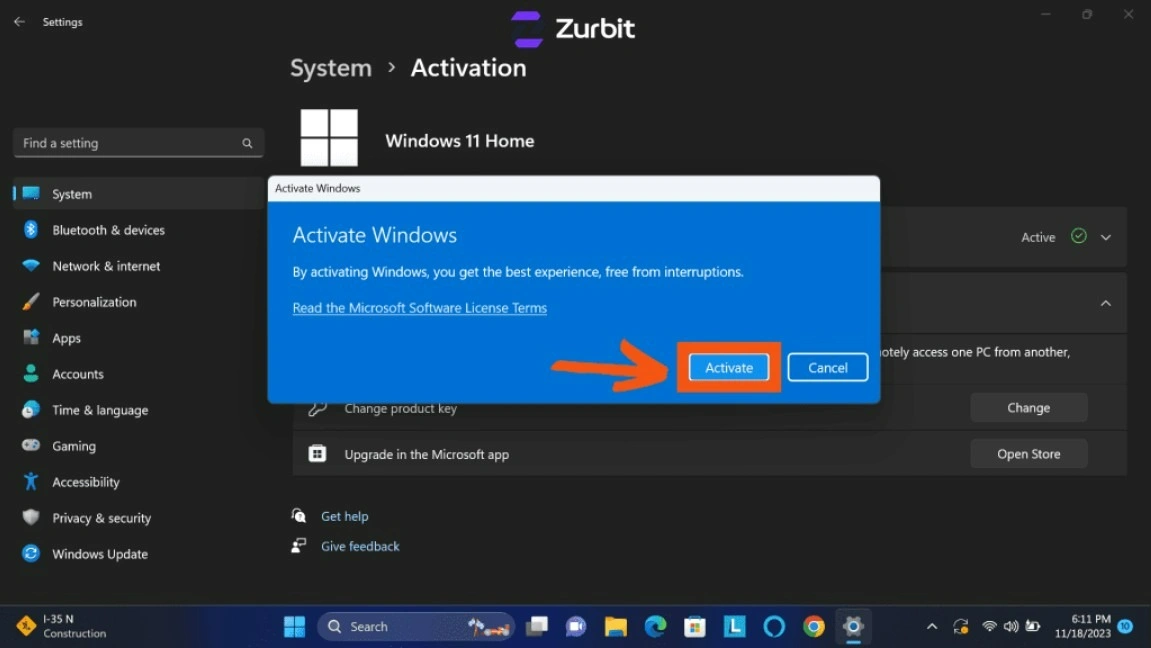
Complete activation and confirm the status
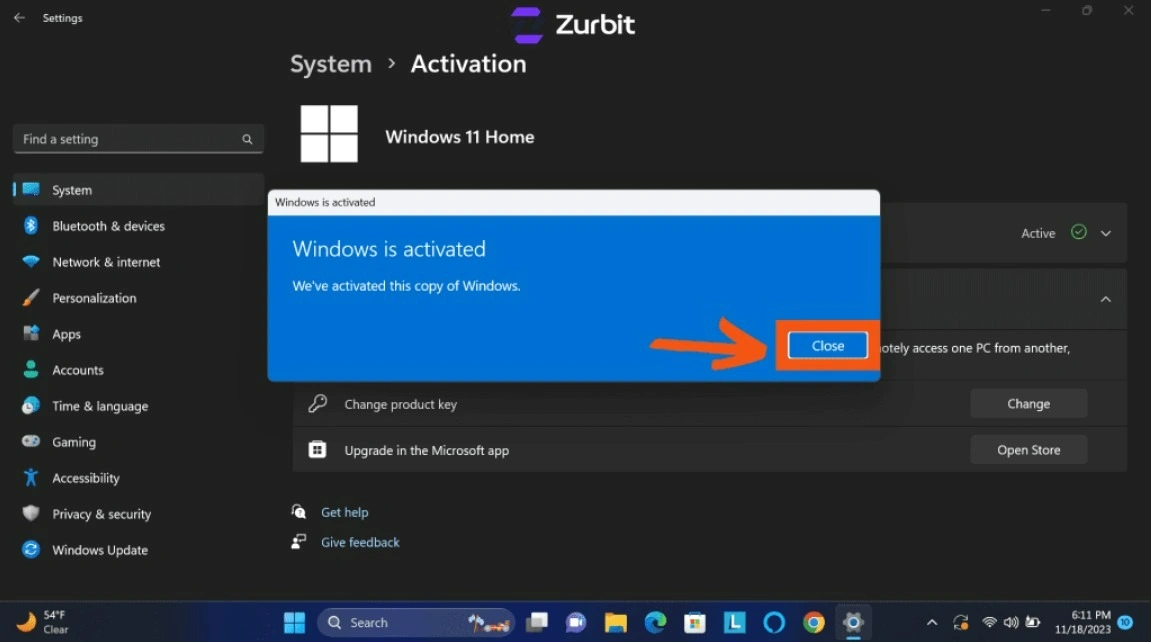
Follow the on-screen prompts to complete activation. Return to the Activation page and confirm that Windows shows as activated.
If Windows activation fails
First check that:
- The product key was entered correctly.
- The key matches the installed Windows edition, such as Home or Pro.
- The device is connected to the internet.
- Windows is not already activated with a different edition or license.
If you see an error code, note the exact code and contact Zurbit support with your order number and a screenshot of the Activation page.
After a major hardware change
If Windows stopped activating after a major hardware change, such as replacing the motherboard, first confirm that the installed Windows edition is the same as before.
If your digital license was linked to your Microsoft account, go to Settings > System > Activation > Troubleshoot, then choose I changed hardware on this device recently.
If you have a valid product key instead of a digital license, return to Settings > System > Activation > Change product key and enter the original key again.
Frequently Asked Questions
Does my product key need to match my Windows edition?
Yes. A Windows Home key activates Windows Home, and a Windows Pro key activates Windows Pro. Check the installed edition on the Activation page before entering the key.
What should I do if Windows stopped activating after a hardware change?
Confirm that the Windows edition is unchanged. If the digital license was linked to your Microsoft account, open Activation, select Troubleshoot, and choose “I changed hardware on this device recently.” If you use a product key, try entering the original key again under Change product key.
How do I upgrade from Windows 11 Home to Windows 11 Pro?
Go to Settings > System > Activation and select Change product key. Enter a valid Windows 11 Pro product key and follow the on-screen instructions. If Windows reports an edition mismatch or upgrade error, contact Zurbit support before trying additional workarounds.
Can Windows 10 still be activated?
Windows 10 can still run and activate. However, Microsoft ended standard support on October 14, 2025, and no longer provides free security updates or standard technical support for most users. Microsoft recommends Windows 11 on compatible devices.
What should I do about error 0x80072F8F - 0x20000?
This error can occur during older Windows upgrade or Media Creation Tool workflows. First confirm that the system date, time, and time zone are correct. If the error continues, contact support for help with the specific installation path you are using.
What should I do about error 0x80070490?
Restart the device, install any pending Windows updates, confirm that the installed Windows edition matches the product key, and retry under Settings > System > Activation. If the error continues, contact support with the exact error code and a screenshot of the Activation page.
Still need help? Contact Zurbit support with your order number, the exact error code, and a screenshot of the Activation page.
contact@zurbit.com +1 (617) 214-4700